
• About

Day 2 Day Dynamics

~ Experiences of a working AX developer

Day 2 Day Dynamics

Tag Archives: Build Scripts

Import-AXXPO custom PowerShell function

12 Tuesday May 2015

Posted by John Hagler in Powershell

≈ 3 Comments

Tags

Automation, AX, AX 2012, AX Development, AX Import, Build Scripts, Dynamics AX, PowerShell, XPO

The Import-AXXPO custom PowerShell function allows you to automate the importing of .xpo files.  It is going to look very familiar to people who have read some of my other functions as it follows the same format as Compile-AXCIL and Sync-AXDB.

The Import-AXXPO function takes between 2 and 9 parameters:

  • ConfigPath (Client configuration for the chosen AX environment)
  • LogFile (The value defaults to the temp folder but can be overridden if desired)
  • TimeOut (The value defaults to 20 minutes but can be overridden if desired)
  • ImportFile (The .xpo file to import)
  • Model (The AX model to open in)
  • SMTPServer (SMTP server to use to send the email)
  • MailMsg (Net.Mail.MailMessage object used to send the email)
  • AXVersion (The AX version.  It defaults to 6.)
  • VariablePath (Path to a file used to default the parameters/variables)

I use the VariablePath parameter the same way that I do in the other functions I’ve posted that use it.  This function can be found in Codeplex.  The steps of this function are:

  • Load the variables if a VariablePath parameter is used
  • Validate the ImportFile parameter location
  • Get the AX environment info using Get-AXConfig
  • Get the CompileIL AX AutoRun xml using the Get-AXAutoRunXML function
  • Call the Start-AXAutoRun function to import the .xpo

Some things to consider with this function.  Where an .xpo is imported is controlled by 3 things.  The configuration file used to open AX will control what layer the .xpo is imported into.  The model is controlled by either the Model parameter or the user option “Startup model” (Tools -> Options -> Development -> Startup model).  This value is stored per user and per layer so make sure you have this value set up in every AX environment that you will be importing .xpos in if you don’t use the Model parameter.

This function should also only be run on the AOS server.  It has been tested using AX 2012 R2 CU7 but should also work for R3.
Clean-AXArtifacts custom PowerShell function

04 Monday May 2015

Posted by John Hagler in Powershell

≈ 4 Comments

Tags

Automation, AX, AX 2012, AX Artifacts, Build Scripts, Dynamics AX, PowerShell

I apologize for missing last week’s post but I’m in the process of moving and my free time has all but gone away.  I discovered the idea for this PowerShell function from a couple of different places.  I first saw the concept of cleaning up “artifact” files in the Build and Deploy Scripts for Microsoft Dynamics AX but I found it much more detailed in the Dynamics AX Admin Utilities.  I was interested in this because I missed the “default fix” that was deleting the application object index in earlier versions of AX.  This isn’t quite the same but it does remove the files that AX generates and stores on the client and server, forcing AX to re-deploy them from code.

The Clean-AXArtifacts function takes between 0 and 3 parameters:

  • ConfigPath (Client configuration for the chosen environment)
  • CleanServer (Switch parameter used to clean artifact files on the server)
  • AllUsers (Switch parameter used to clean artifact files for all users on the client instead of just the current user)

The ConfigPath parameter is only required if the CleanServer parameter is used.  The CleanServer parameter will stop the AOS (if it’s running), delete the server artifacts and start the AOS (if it was stopped by the function earlier).  AllUsers is good for terminal server client servers.  It will allow you to delete the client artifacts for all users that log onto that terminal server.

This function can be found in Codeplex.  This function also uses 2 internal functions that I’ve created, Clean-Folder and Clean-Folders.  These functions allow me to loop through the folders and delete the files.  The steps of this function are:

  • Validate parameters
  • Check if the server needs to be cleaned
    • Get the AX environment info using Get-AXConfig
    • Stop the AOS if it’s running
    • Delete the server artifact files using Clean-Folder
    • Start the AOS if it was stopped by the function
  • Check if all users need to be cleaned
  • Use Clean-Folders for all users or Clean-Folder if not

I use this function during builds and also during pushes.  When I have an environment that has more than one AOS, I generally stop the AOS on the other AOS’s, then run Clean-AXArtifacts on the primary AOS.  While it is running, I log onto the other AOS’s and run the function there.  I also log onto the client terminal server and delete the client artifacts for all users.  When the primary AOS has started again, I start the AOS’s on the other AOS servers.  This function has become my default AOS bounce.  Instead of restarting the AOS, I call Clean-AXArtifacts.

Like all of my other functions, this must be run on the server that you are deleting files on.

Compile-AXAOT custom PowerShell function

20 Monday Apr 2015

Posted by John Hagler in Powershell

≈ 1 Comment

Tags

AOT, Automation, AutoRun, AX, AX 2012, Build Scripts, Compile, Dynamics AX, PowerShell

The Compile-AXAOT custom PowerShell function will allow you to compile the AOT using the client compile.  I would recommend using the Start-AXBuildCompile function that uses the server compile if you are on AX 2012 R2 CU7 or higher as this function will compile much faster but this one will accomplish the same thing if you aren’t.

The Compile-AXAOT function takes between 1 and 6 parameters:

  • ConfigPath (Client configuration for the chosen AX environment)
  • TimeOut (The value defaults to 2 hours but can be overridden if desired)
  • SMTPServer (SMTP server to use to send the email)
  • MailMsg (Net.Mail.MailMessage object used to send the email)
  • AXVersion (The AX version.  It defaults to 6.)
  • VariablePath (Path to a file used to default the parameters/variables)

You might notice that this function doesn’t take a LogFile parameter.  That is because the client compile stores the log file in specific location and changing that value would not allow you to receive the compile log.  This function can be found in Codeplex.  The steps of this function are:

  • Load the variables if a VariablePath parameter is used
  • Get the AX environment info using Get-AXConfig
  • Get the CompileApplication AX AutoRun xml using the Get-AXAutoRunXML function
  • Call the Start-AXAutoRun function to compile the AOT

This function should also only be run on the AOS server.  It has been tested using AX 2012 R2 CU6 and CU7 but I would expect this to work for any version of AX 2012.

Start-AXAutoRun custom PowerShell function

20 Monday Apr 2015

Posted by John Hagler in Powershell

≈ 1 Comment

Tags

Automation, AutoRun, AX, AX 2012, Build Scripts, Dynamics AX, PowerShell

This blog post is an extra this week.  In my last blog post, I discussed my desire to clean up the duplicate code in my functions that were calling the AXAutoRun process.  This function is putting that duplicate code into a single function that my other functions will call.  I will update the code and blog posts to reflect this change.  I apologize for the changes but these functions are a work in progress.  I have been using them for over a year but one of the main reasons I wanted to blog about them was so I could clean them up and package them for others.

The Start-AXAutoRun function takes between 5 and 8 parameters

  • Ax (The PSObject returned from the Get-AXConfig DynamicsAXCommunity function)
  • Model (The AX model to open in)
  • XMLFile (The xml generated from the Get-AXAutoRunXML function)
  • LogFile (The location of the log file)
  • Process (A description of the process being run that is used for notifications)
  • Timeout (The timeout value for the process in seconds)
  • SMTPServer (SMTP server to use to send the email)
  • MailMsg (Net.Mail.MailMessage object used to send the email)

This function can be found in Codeplex.  The steps of this function are:

  • Start the AX client using the AutoRun xml
  • Wait for the timeout period for the AX client to exit
  • Send the success/fail message

The first 5 parameters are required.  The last 2 are only necessary for emailing the results.  I’m not expecting that most users would be using this function as it is intended to be an internal function used by my custom functions that call AXAutoRun.  Using this in hand with Get-AXAutoRunXML would allow you to build any custom AXAutoRun functions that you would like however.

Sync-AXDB custom PowerShell function

12 Sunday Apr 2015

Posted by John Hagler in Powershell

≈ 3 Comments

Tags

Automation, AutoRun, AX, AX 2012, Build Scripts, Database, DB, Dynamics AX, PowerShell, Synchronize

The Sync-AXDB custom PowerShell function will allow you to synchronize the AX DataDictionary from PowerShell.  If you compare this function/post against the Compile-AXCIL function/post, you will see that they are almost identical.  I had thought of creating a single Start-AXAutoRun function but eventually scrapped that idea in favor of simplicity for the user.  I may look at creating an internal function for the AX call at some point in the future to remove the code duplication.

The Sync-AXDB function takes between 1 and 7 parameters:

  • ConfigPath (Client configuration for the chosen AX environment)
  • LogFile (The value defaults to the temp folder but can be overridden if desired)
  • TimeOut (The value defaults to 2 hours but can be overridden if desired)
  • SMTPServer (SMTP server to use to send the email)
  • MailMsg (Net.Mail.MailMessage object used to send the email)
  • AXVersion (The AX version.  It defaults to 6.)
  • VariablePath (Path to a file used to default the parameters/variables)

I use the VariablePath parameter the same way that I do in the other functions I’ve posted that use it.  This function can be found in Codeplex.  The steps of this function are:

  • Load the variables if a VariablePath parameter is used
  • Get the AX environment info using Get-AXConfig
  • Get the Synchronize AX AutoRun xml using the Get-AXAutoRunXML function
  • Call the Start-AXAutoRun function to synchronize the database

This function should also only be run on the AOS server.  It has been tested using AX 2012 R2 CU7 but should also work for R3.  I have added the Version parameter to this function but it was initially missing from the Compile-AXCIL function/post.  I have gone back and added it to the earlier post as well to reflect the code change in TFS.

Compile-AXCIL custom PowerShell function

06 Monday Apr 2015

Posted by John Hagler in Powershell

≈ 3 Comments

Tags

Automation, AutoRun, AX, AX 2012, Build Scripts, CIL, Compile, Dynamics AX, IL, PowerShell

The Compile-AXCIL custom PowerShell function will allow you to generate the AX CIL.  This doesn’t add anything really new to what is existing, as the DynamicsAXCommunity PowerShell module has a Compile-AXIL function.  I have only re-written this because of my desire to allow emails to be sent from these functions.

The Compile-AXCIL function takes between 1 and 7 parameters:

  • ConfigPath (Client configuration for the chosen AX environment)
  • LogFile (The value defaults to the temp folder but can be overridden if desired)
  • TimeOut (The value defaults to 2 hours but can be overridden if desired)
  • SMTPServer (SMTP server to use to send the email)
  • MailMsg (Net.Mail.MailMessage object used to send the email)
  • Version (The AX version.  It defaults to 6.)
  • VariablePath (Path to a file used to default the parameters/variables)

I use the VariablePath parameter the same way that I do in the other functions I’ve posted that use it.  This function can be found in Codeplex.  The steps of this function are:

  • Load the variables if a VariablePath parameter is used
  • Get the AX environment info using Get-AXConfig
  • Get the CompileIL AX AutoRun xml using the Get-AXAutoRunXML function
  • Call the Start-AXAutoRun function to compile the IL

This function should also only be run on the AOS server.  It has been tested using AX 2012 R2 CU7 but should also work for R3.

Get-AXAutoRunXML custom PowerShell function

29 Sunday Mar 2015

Posted by John Hagler in Powershell

≈ 1 Comment

Tags

Automation, AutoRun, AX, AX 2012, Build Scripts, Dynamics AX, PowerShell

The obvious posts following the Start-AXBuildCompile post would be to talk about the AOT client compile, compiling IL and synching the AX data dictionary.  However, all of these processes rely on the AX SysAutoRun functionality.  To prep for these upcoming PowerShell functions, I will walk you through the Get-AXAutoRunXML function.

The SysAutoRun class is a class in AX that allows you to run functionality in AX at startup.  This becomes the entry point for most, if not all of the processes that you want to automate in AX.  The Get-AXAutoRunXML function allows you to build an AxaptaAutoRun xml very easily that can then be used to run different processes in AX for your automation.

The Get-AXAutoRunXML takes 3 parameters:

  • ExitWhenDone (If this parameter is passed, AX will run the process and exit afterwards)
  • LogFile (Determines if the process makes the infolog available for output and where that file is saved)
  • Command (This parameter is used to choose what process AX runs at startup)

This is a very straightforward function that can be found in Codeplex.  It takes the parameters and returns an AxaptaAutoRun xml that can then be passed into AX to allow multiple AX processes to be automated (e.g. client compile, IL compile, data dictionary sync).

If you examine the function, you will see that the xml has a version property in the header.  I struggled with whether or not to make this property a parameter of the function.  Ultimately, I decided that if the AxaptaAutoRun version is changed, I would more than likely have to update this function to account for changes in the xml.  For this reason, I decided to leave it as a hardcoded value but this could change in the future.

Start-AXBuildCompile custom PowerShell function

22 Sunday Mar 2015

Posted by John Hagler in Powershell

≈ 4 Comments

Tags

Automation, AutoRun, AX, AX 2012, Build Scripts, Compile, Dynamics AX, PowerShell, R2 CU7, R3, Server Compile

This function was created to allow you to run a server compile from PowerShell.  I will apologize upfront to anyone on an earlier version of AX 2012 than R2 CU7.  This PowerShell function will only be useful if you are running a version of AX 2012 that is R2 CU7 or greater.  The reason being that R2 CU7 introduced the AxBuild.exe server compile.  There is a lot of information in the link regarding this process but for my purposes, the most important part was the difference in compile time.  Compilation time in my standalone development environment decreased from 4+ hours for the client compile to about 20 minutes when using the server compile.  I have other PowerShell functions that I will discuss in future posts that allow you use the client compile that is available in earlier versions but this one uses the server compile.

This function is also the main reason why I originally customized the Get-AXConfig function made available from the DynamicsAXCommunity PowerShell module that I discussed in an earlier post.  I needed the ServerBinDir for access to the AxBuild.exe server compile and the ServerLogDir for access to the compilation results file.  You will need to have the DynamicsAXCommunity PowerShell module installed and loaded in your session to use this function.  You should add the loading command for it to your profile.

  • Import-Module DynamicsAXCommunity -DisableNameChecking

The Start-AXBuildCompile function takes either 1 parameter or a mix of up to 8 parameters:

  • ConfigPath (Client configuration for the chosen AX environment)
  • AXVersion (This should be 6 but I’ve included it in anticipation for AX 7)
  • LogPath (Used to override the default location of the AXCompileAll.html file)
  • NoCleanup (Tells the program to keep the temporary files it writes under the %TEMP% directory)
  • StopAOS (In certain scenarios, the AxBuild.exe service might provide outdated metadata or outdated p-code to the compile process if the AOS is running)
  • SMTPServer (SMTP server to use to send the email)
  • MailMsg (Net.Mail.MailMessage object used to send the email)
  • VariablePath (Path to a file used to default the parameters/variables)
  • Workers (Used to force the number of workers used to compile from the default used by AXBuild.exe)

The VariablePath variable is being used in my functions to default variables.  It saves me time when running things in each environment to set up the variables beforehand and then I pass in the location of my D2D_PSFunctionVariables.ps1 file as this parameter.  This allows me to use these functions without filling out all of the variables in my PowerShell function calls.  You can find my D2D_PSFunctionVariables.ps1 file and the Start-AXBuildCompile custom PowerShell function in Codeplex.

The steps of this function aren’t overly complicated.  They are:

  • Load the variables if a VariablePath parameter is used
  • Get the AX environment info using Get-AXConfig
  • Stop the AOS if the switch parameters is passed
  • Build the command parameters for AXBuild.exe
  • Call the command using Invoke-Expression
  • Start the AOS if it was previously stopped
  • Get the file with the results of the compilation
  • Send an email with the compilation results file attached if a valid MailMessage variable is set up.  If one isn’t set up, you will need to navigate to the default location for this file on the AOS server to view it.

A couple of final things.  This function needs to be run on the AOS server.  It has not been built to allow remote functionality.  Also, I have only tested this function on AX 2012 R2 CU7 but I would expect it to work on R3 as well.  Please comment if there are any issues on R3.

Send-Email custom PowerShell function

13 Friday Mar 2015

Posted by John Hagler in Powershell

≈ 5 Comments

Tags

Automation, AX, AX 2012, AX Email, Build Scripts, Dynamics AX, PowerShell, Setup

When looking at automating my AX 2012 processes, the first thing I was interested in was the ability to send emails when steps were completed.  This would allow me to kick off my process and walk away, tracking it on my phone if necessary.

The function I created for this is Send-Email and can be found on Codeplex.  It takes 7 parameters:

  • SMTPServer (SMTP server that will send the email)
  • From (Who the email is from)
  • To (Who the email is to)
  • Subject (Email subject)
  • Body (Email body)
  • Priority (Email priority)
  • FileLocation (Allows you to attach a file if used.  I primarily use this to attach my log files)

This function uses the Net.Mail.MailMessage and Net.Mail.SmtpClient to send an email message.  I usually default some of these parameters in the scripts I use to call these functions but we’ll get into that when I walk through my build function.  You can view the code in this function using PowerShell ISE.

The way that I currently test and run these standalone PowerShell functions is to use my profile.  In my profile, I include a link to a PowerShell script that holds my function locations.  I do this so that when I add new functions, I can just include them in my D2D_PSFunctions.ps1 script and they will be automatically included by my profile the next time I open up PowerShell.  You can get more info on what I’m doing in an earlier post as well as Codeplex.

Please take a look at this function to get an idea of what is going on.  There may be optimizations or better ways to do things in PowerShell but I was teaching myself PowerShell while I wrote all of this.

DynamicsAXCommunity PowerShell module plus changes

04 Wednesday Mar 2015

Posted by John Hagler in Powershell

≈ 2 Comments

Tags

Automation, AX2012, Build Scripts, Dynamics AX, PowerShell, Setup

When I first started looking at creating an automated build process, I settled on PowerShell primarily because of 2 resources; the DynamicsAXCommunity PowerShell module and the Build and Deploy Scripts for Microsoft Dynamics AX 2012.  While I was ultimately unable to get the B&D Scripts running in my environment, I did learn a lot about PowerShell and the direction I needed to go to get a build process going.  I ended up using a lot of the ideas in my own processes.

The DynamicsAXCommunity Powershell module became the first brick in my process.  I started out using most of the functions available but eventually rewrote some of them to incorporate email functionality.  The three that I still use regularly are Get-AXConfig, Start-AXAOS and Stop-AXAOS.  I have also modified some of the code used in the Get-AXConfig method to return some values from the configurations that I needed.

My changes to the module are on the alpha version.  There appear to be 2 newer versions of this module, a beta and 0.3.4 but I have not integrated my changes into either of these.  You can find both the original alpha version and the version with my code changes in Codeplex based on the check-ins.  I plan to either integrate my changes in the newest version or add the three functions that I use from the DynamicsAXCommunity module into my functions at some point in the future.  For now, the alpha version has been used with my scripts for the last year and half and I feel comfortable that it works.

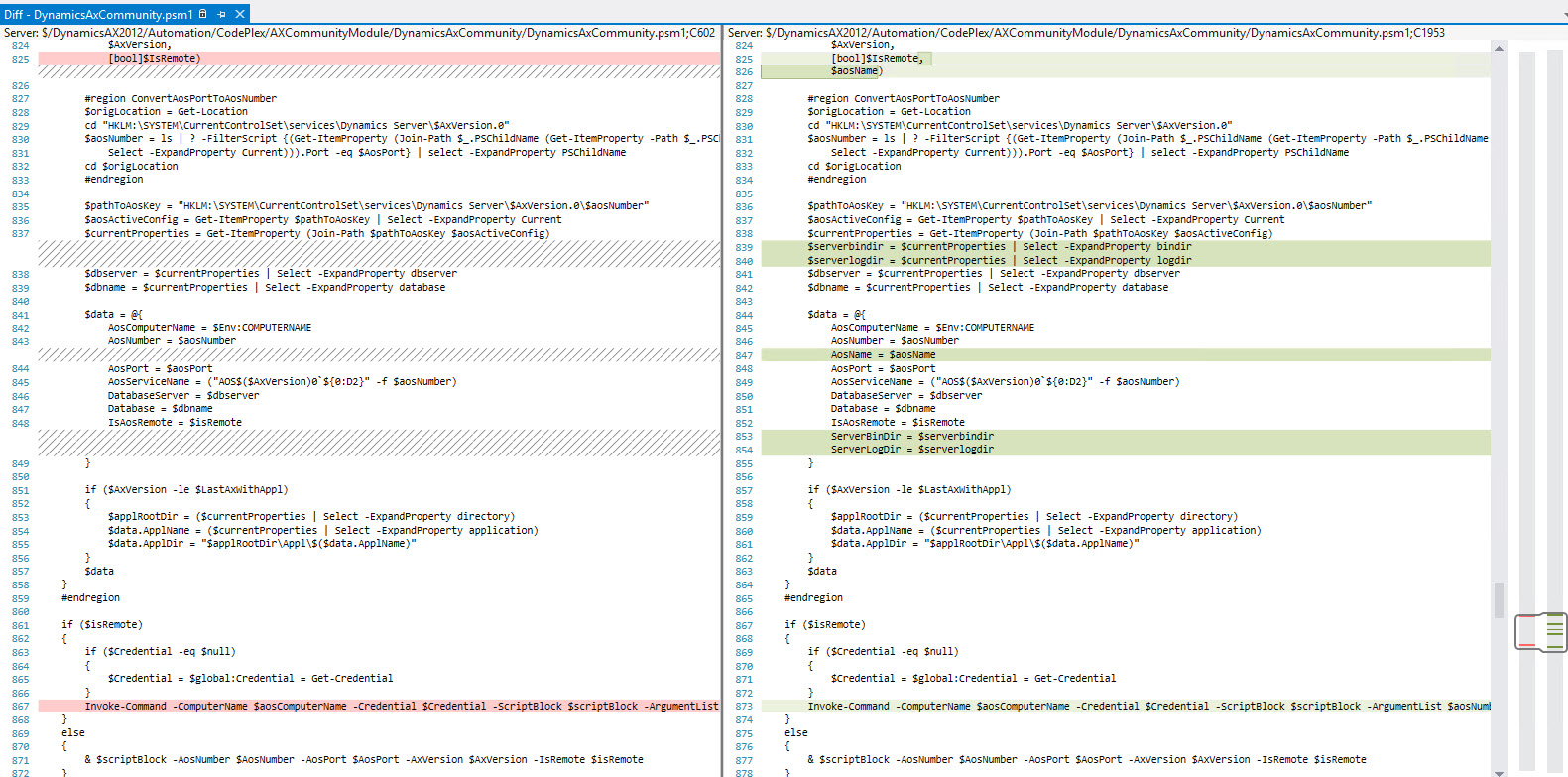
I have added three values that are returned from the Get-AXConfig function.

  • ServerBinDir
  • ServerLogDir
  • AosName

DynamicsAXCommuntiyChanges

The two directories are used to get executables and compile logs and the AOS name is used in some of the standard AX PowerShell functions installed with the Management Utilities.

This post and my last one have laid the groundwork for what is necessary to start using my functions.  In my next post, we will start looking at them.

Newer posts →
Follow Day 2 Day Dynamics on WordPress.com

Day 2 Day Dynamics

  • RSS - Posts
  • RSS - Comments

Recent Posts

  • Minimizing Database Calls
  • Push-AXModel custom PowerShell function
  • Clean-AXModel custom PowerShell function
  • Get-AXTFSCombinedXpo custom PowerShell Function
  • Refresh-AXAifPort custom PowerShell function

Archives

  • February 2016
  • December 2015
  • November 2015
  • October 2015
  • September 2015
  • August 2015
  • July 2015
  • June 2015
  • May 2015
  • April 2015
  • March 2015
  • February 2015

John Hagler

John Hagler

John Hagler

I am the Dynamics AX Technical Architect at Dealer.com. I have been working with AX since Sep. 2006, starting with Axapta 3.0. I have worked as both a VAR and an AX customer.

View Full Profile →

Blog at WordPress.com.

  • Subscribe Subscribed
    • Day 2 Day Dynamics
    • Already have a WordPress.com account? Log in now.
    • Day 2 Day Dynamics
    • Subscribe Subscribed
    • Sign up
    • Log in
    • Report this content
    • View site in Reader
    • Manage subscriptions
    • Collapse this bar
 

Loading Comments...